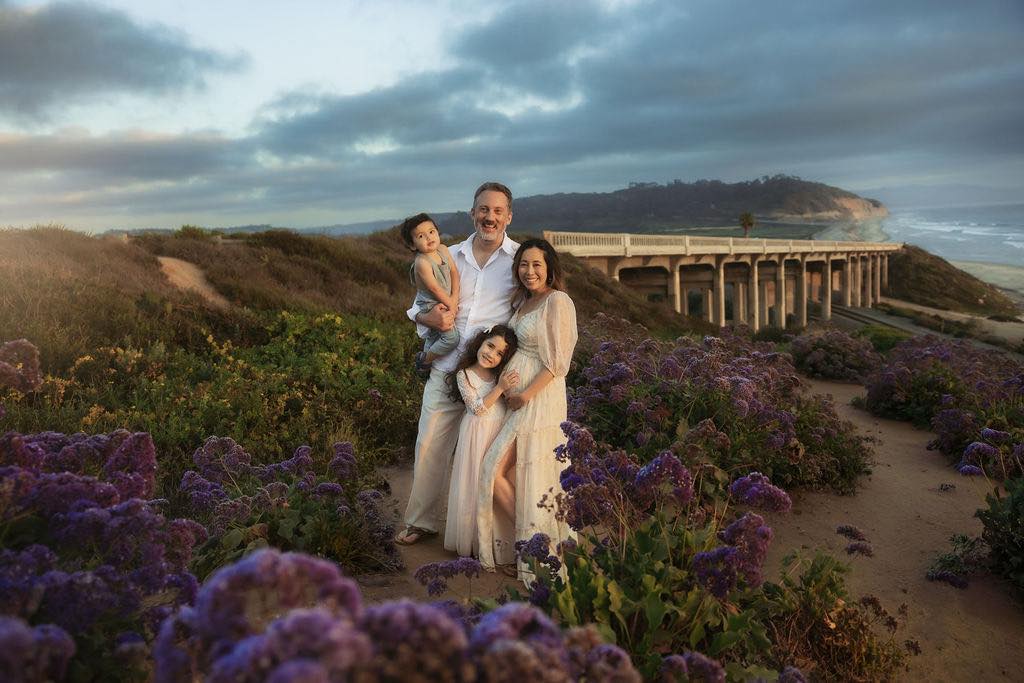
Never used Lightroom Presets before? No worries — you’ve come to the right place. Presets are one of those features that seem small but make a huge difference in your editing workflow. With just a single click, you can transform your photos and keep a cohesive, polished look throughout your entire gallery.
Below, we’ll walk you through how to get the Signature Presets Collection installed on your computer, plus a few video tutorials to give you an idea of how to apply the presets to your own images. No matter where you are in your editing journey, we’ve made the process as simple and approachable as possible. Let’s dive in!
How to Install Presets in Lightroom Classic CC Desktop
(For Install Help for Profile Presets and Lightroom Brushes, please see the bottom of this page)
Installing Presets in Lightroom Classic CC (Desktop)
Getting your Signature Presets installed in Lightroom Classic CC is quick and easy. Just follow these simple steps:
- Download your preset file — After purchase, download your preset file to your computer. Your presets will come in a .zip folder — make sure to unzip/extract the folder before installing.
- Open Lightroom Classic CC on your desktop.
- Go to the Develop Module — Click Develop in the top right navigation bar.
- Open the Presets Panel — On the left side, locate the Presets panel and click the “+” icon at the top right of the panel.
- Select “Import Presets” from the dropdown menu.
- Locate your preset files — Navigate to where you saved your downloaded preset files (.xmp files) and select them.
- Click Import — Your presets will now appear in your Presets panel under a new folder, ready to use!
- Apply your preset — Simply click on any preset to instantly apply it to your photo. From there, feel free to fine-tune the settings to match your specific lighting and style.
Evolve Collection
Autumn Dream Collection
Retro Presets
How to Install Profile Presets
Installing Profile Presets in Lightroom Classic CC (Desktop)
Follow these simple steps to get your Signature Profile Presets installed and ready to use:
- Download your profile files — After purchase, download your files to your computer. They will come in a .zip folder — make sure to unzip/extract the folder before installing.
- Locate your Lightroom Profiles folder — You will need to manually place your profile files into the correct folder on your computer. Navigate to the following location:
- Windows:
C:\Users\[YourUsername]\AppData\Roaming\Adobe\CameraRaw\CameraProfiles - Mac:
~/Library/Application Support/Adobe/CameraRaw/CameraProfiles
- Windows:
- Copy and paste your profile files — Move your downloaded profile files (.xmp files) into the CameraProfiles folder.
- Restart Lightroom Classic CC — Close and reopen Lightroom Classic for the profiles to load properly.
- Access your Profiles — Open a photo in the Develop Module, then click the Browse button next to the Profile field at the top of the Basic panel.
- Find your Signature Profiles — Your newly installed profiles will appear under a named folder in the Profile Browser. Click on any profile to apply it to your photo instantly!
How to Install Lightroom Brushes
Installing Brushes in Lightroom Classic CC (Desktop)
Lightroom Brushes are installed a bit differently than presets. Follow these steps to get your Signature Brushes ready to use:
- Download your brush file — After purchase, download your files to your computer. They will come in a .zip folder — make sure to unzip/extract the folder before installing.
- Locate your Lightroom Settings folder — You will need to manually place your brush files into the correct folder on your computer. Navigate to the following location:
- Windows:
C:\Users\[YourUsername]\AppData\Roaming\Adobe\Lightroom\Local Adjustment Presets - Mac:
~/Library/Application Support/Adobe/Lightroom/Local Adjustment Presets - Copy and paste your brush files — Move your downloaded brush files (.lrtemplate or .xmp files) into the Local Adjustment Presets folder.
- Restart Lightroom Classic CC — Close and reopen Lightroom Classic for the brushes to load properly.
- Access your Brushes — Open a photo in the Develop Module and select the Adjustment Brush tool (K) from the toolbar.
- Find your Signature Brushes — Click the Effect dropdown menu at the top of the Brush panel and scroll down to find your newly installed brushes. Click on any brush to start applying it to your photo!
I hope this helps you feel confident using your new presets! If you run into any questions along the way or just need a little extra guidance, don’t hesitate to reach out — we’re always happy to help.